Reference Readings - Connecting Devices to Network
Requirements
For any of the following to work the device must be connected to the network, either through a network cable or via wireless. Most devices should be able to do this step automatically. The wireless network could have various names with the following as likely examples:
- UAP Network
- UAP Workshop Stream 1
- UAP Workshop Stream 2
- UAP Workshop Stream 3
After selection of the wireless network name the remaining of the process should be very easy. Cabled devices should normally already be connected to the network and ready to go.
One more important detail is that the home page of the browser should be set to a non-encrypted website such as https://www.trr.vu and not https://www.facebook.com. This should already be setup by default when you will be using the equipment.
Captive Portal Login
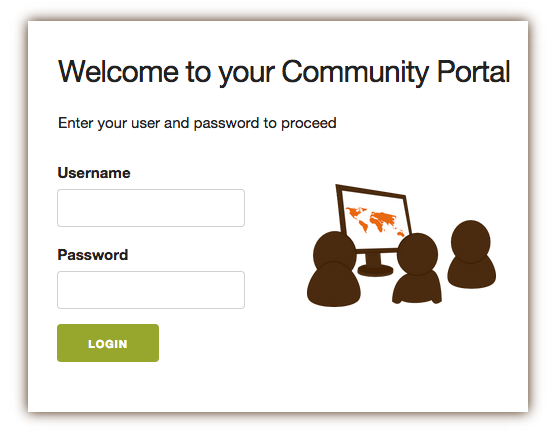
When
connecting the device on the network and trying to access a website the
UAP Gateway and Server's captive portal should automatically redirect
you to a login page where you will have to enter your username and
password into a web form that will look like the following illustration.
How you will get to the following login page is slightly different
depending on which device and operating system you will be using.
Basically, you just need to find and open a web browser and try to
access a website.
Connecting Android Tablet Devices
This
process might also be a little different between various Android
version but should be very similar. All tablets will connect to the
network and the UAP Gateway and Server wirelessly. The tablet should
automatically detect the wireless network.
TODO - Add actual screenshot of how this will look like when connecting the tablets
Connecting Windows 7 Computer
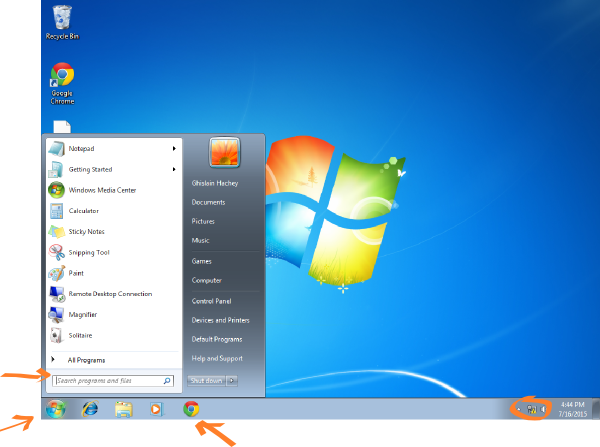
Open the web browser of your choice (or the one you were told to you). This could be Internet Explorer, Google Chrome, Firefox among others. You can usually find it at the bottom of the screen as a quick launcher or search it from the Start menu. Before you login notice in the right bottom corner the Yellow exclamation mark indicating a network issue. This is simply because you do not yet have access to the network. This will disappear once you open a browser and login.
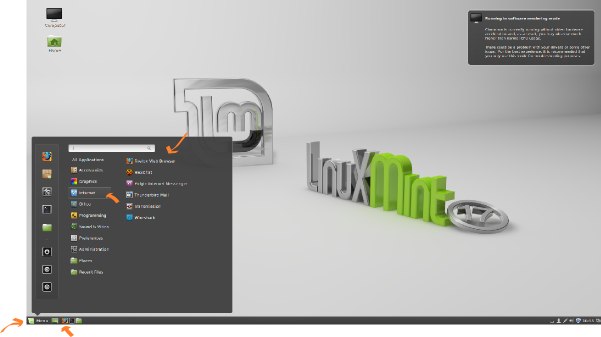
Connecting Linux Computer
The screenshot shown here is on Linux Mint but it would be similar on any Linux distribution. Find the web browser and open it.