Reference Readings - Persisting Leases
Before going further it is
important to understand that even if this section is not understood and
no actions are taken that things on the network will continue working.
However, properly managing network information can provide some really
nice advantages. This is also something that could be done by the contractor when they come setup the equipment.
DHCP Service
All devices on a network have their own address, much like any house or building can have an address, some specific and unique information that can be used to locate them. Typically the address of a device on the network will look something like 192.168.1.10 for an IPv4 network or 2001:0db8:85a3:0042:1000:8a2e:0370:7334 for the newer less popular IPv6 network.
It is the job of a DHCP server to assign automatically addresses to devices on the network, without it devices would not be able to communicate with each other or the Internet. There is a lot of information on the Internet about this though it is a little advanced network topic for most casual users. Basic steps to show you how to find out what is the IP address you are using are available at https://kb.iu.edu/d/aapa.
Persisting Leases
If
you never take any of the following actions, the UAP Gateway will assign an address to all the
devices on the network automatically and they will be able to
communicate with each other and access the Internet without problem. However, the IP
address allocated to devices will from time to time change making it
harder to monitor the traffic by users.
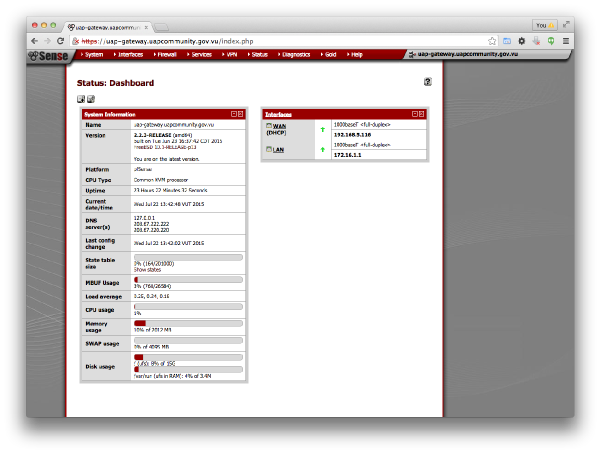
Knowing who does what on the network is a powerful tool. It can help you identify problems on the network (maybe some computer is consuming all the Internet bandwidth somehow) or it can help you identify what the network resources are being used for (Voice, Web surfing, Facebook, Google, etc.). This configuration is done on the UAP Gateway and can be done through any modern web browser and entering the address https://uap-gateway.uapcommunity.gov.vu in the address bar (clicking on the link will work here if you are connecting through the UAP Gateway and Server). You will see a security warning, it is normal, click to continue. Enter your username and password and you should see something like the following figure once logged in.
From the top menu locate Status --> DHCP Leases and click it. You will get a list of all existing leases which is also a list of all the devices connected to the UAP Gateway and Server. One of them is likely your own computer device. The IP address is the address given by the DHCP server to the devices, the MAC address is a unique identifier of the network interface on the computer device, the hostname is a human readable name of the machine (it may be empty or not) and you also have other information such as the time the lease was given, the time it will expire and whether or not the computer device is online at the moment. This can all be seen in the following illustration.
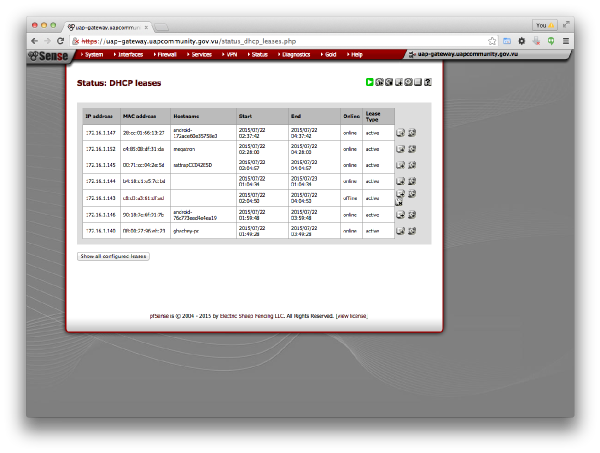
To the right on the above figure you will see buttons next to each computer device lease. The + button is to persist the lease and make it permanent: this means the IP address will be permanently assigned to that device. The w button is a feature to make the machine wake up on LAN, this means that if the device is turned off you could "wake it up" directly from the Gateway and turn it on automatically. This can be useful in some cases but what we are really after is persisting the lease.
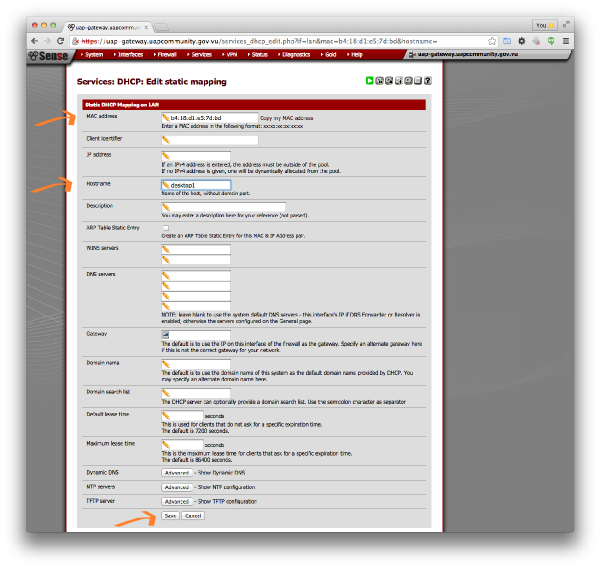
Persisting the lease is easy. You click on the + next to the machine you want to persist the network configuration. You will be presented with the following figure where you can optionally enter the hostname which is any text that identifies that computer (pc1, desktop1, laptop2, alice-pc, bob-laptop, etc.) and finally press save without modifying anything else. Not changing the hostname is also a good option is a good one was used when the machine was first configured.
That is easy right? However, the is a tricky part. How do you name the computer? How do you know which computer is which one? The quick answer is by looking at the MAC address. It is typically easy to get the MAC address on any device you are using whether an Android tablet or a Windows PC. But the process will vary. The link above (https://kb.iu.edu/d/aapa) provides some detailed steps of how to get the network information on various operating systems. When doing this on a command line you will see outputs like this. The MAC address is the one in bold; the IP address is also in bold. If you look carefully you should be able to see those in the list of leases (connected devices).
$ sudo ifconfig
[sudo] password for user:
eth0      Link encap:Ethernet  HWaddr 46:3b:c8:e8:12:2b
          inet addr:172.16.1.2  Bcast:172.16.1.255  Mask:255.255.255.0
          inet6 addr: fe80::443b:c8ff:fee8:122b/64 Scope:Link
          UP BROADCAST RUNNING MULTICAST  MTU:1500  Metric:1
          RX packets:35650 errors:0 dropped:5 overruns:0 frame:0
          TX packets:29050 errors:0 dropped:0 overruns:0 carrier:0
          collisions:0 txqueuelen:1000
          RX bytes:3651280 (3.4 MiB)  TX bytes:19676587 (18.7 MiB)

lo        Link encap:Local Loopback
          inet addr:127.0.0.1  Mask:255.0.0.0
          inet6 addr: ::1/128 Scope:Host
          UP LOOPBACK RUNNING  MTU:65536  Metric:1
          RX packets:20315 errors:0 dropped:0 overruns:0 frame:0
          TX packets:20315 errors:0 dropped:0 overruns:0 carrier:0
          collisions:0 txqueuelen:0
          RX bytes:4649383 (4.4 MiB)  TX bytes:4649383 (4.4 MiB)
Once you know which device it is you can name it. Maybe even put a tag on the computer and use the same tag as the hostname. If you are using a Android tablet you can get this information by going in Settings -> About Phone -> Status -> IP Address and it should contain both the IP address and the MAC address.