Reference Readings
The current content filtering approach used on the UAP Gateway and Server is a free online service called OpenDNS. This is a lightweight and simple solution that works quite well. It is not have powerful and flexible as some other solutions that will also be made available on the UAP Gateway and Server but it is an excellent way to get started.
How does OpenDNS works?
For the technical people, the way OpenDNS works is by making DNS queries from a network go through OpenDNS' DNS servers. A DNS server provides the services that translate the human readable domain names such as www.facebook.com to it equivalent IP address used by computers to communicate such as 173.252.120.6. If OpenDNS sees a domain that is not allowed for example www.playboy.com then it will not return the correct IP for that domain but direct the user to a blocked page.
OpenDNS Initial Setup
OpenDNS is already setup on the UAP Gateway and Server and ready to use. Basically the devices on the network are configured to use a very specific DNS configuration. If any user on the network gets clever and tries to get around the content filter by configuring their own DNS server this will not work as the server also redirects all DNS queries to the same OpenDNS server. In addition, trying to trick the system by changing the DNS on the networked computer will break a number of other services as DNS is a core component of the UAP Gateway and Server.
OpenDNS Category Blocking
OpenDNS comes with many categories of websites such as Violence, Pornography, Drugs, etc. Those categories are constantly updated to keep a list of websites on the Internet associated with them. You can decide which category you want to block or allow from your OpenDNS account. You can login the UAP Gateway and Server's OpenDNS account with the credentials given to you at https://login.opendns.com/ and you should see the following.
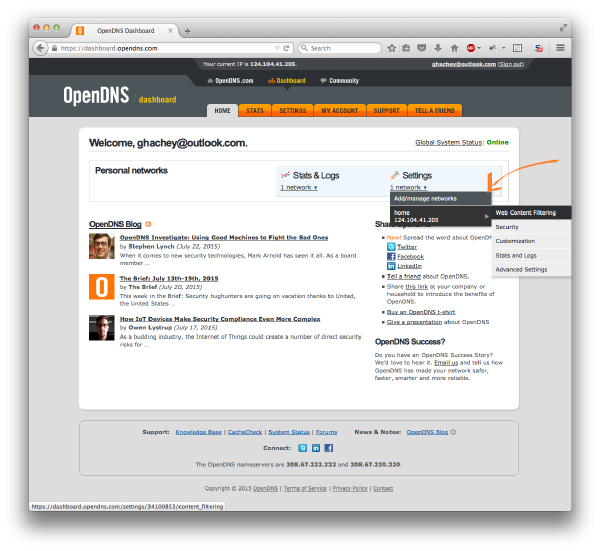
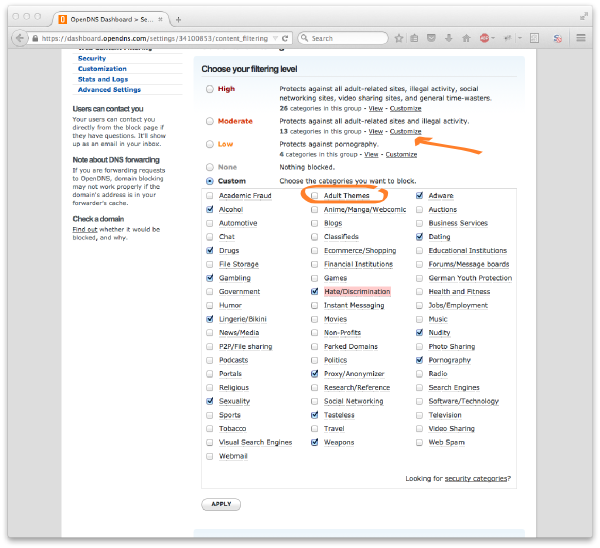
Find your network and click on Web Content Filtering as shown in the above figure. You will then see the settings as they are now: Moderate which protects against all adult-related sites and illegal activity. If you want to customize the categories of website you can simply click on Customize next to moderate to get something like follows. You could check mark any one was those (e.g. Adult Themes as circled in orange) to block all websites considered to be categorized in that particular category.
OpenDNS Blocking or Allowing Single Domain
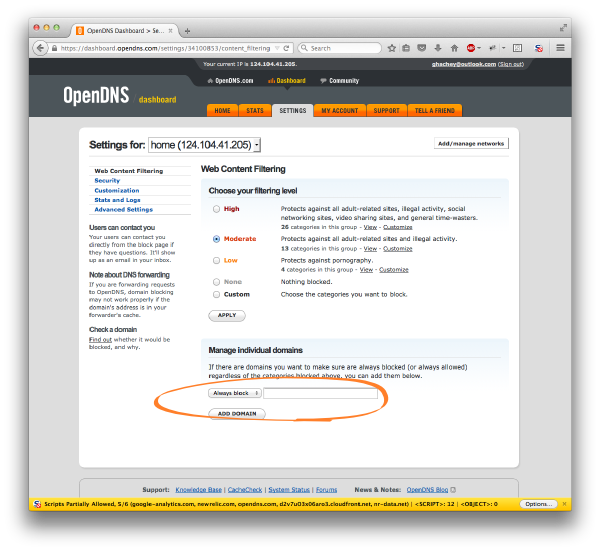
You might want to block a single website that is not part of the categories you have blocked already. Or you might want to allow a single website without allowing the whole category. You can do this using through the Manage individual domains sections as shown below. First, select Always block or Never block and then enter the domain for example facebook.com.