Reference Readings - Using ownCloud
Introducing ownCloud
Cloud computing has been increasingly gaining popularity around the world where technology is being used. Cloud computing however is little more then using online services and storing your data on someone else's servers. This has a number of disadvantages especially for people with slow and unreliable Internet connections:
- You loose control over your data;
- your data will likely more easily be hacked and stolen by cyber criminals;
- your data is more likely to be spied on by foreign governments;
- the service you use may be discontinued by the owning business;
- the owning business may lose your data while you signed an agreement protecting them when registering with their service;
- if the Internet is down your service is not available to you;
- If the Internet is unreliable your service is not reliable.
There are advantages of Cloud computing but they are pale in comparison to the disadvantages. One advantage is that you do not have to worry about the technical administration of the service in exchange typically for a perpetual "renting fee". Thankfully, some projects are available for free to regain control of your data and services and ownCloud is one of them, and it is very nice.
ownCloud is primarily a file sync and sharing self hosting platform. It enables users to sync their data to a central server which ideally will look after their data well including conducting backups. Files can be accessed from any device from any where with an Internet connection and shared between users quite easily. ownCloud can also do more but the reader is referred to the ownCloud website at https://owncloud.org/ to learn more.
Storage Management
The UAP Gateway and Server is a little limited in available space. This is not a permanent problem as more storage could be added later but it does mean that some basic storage management will be needed at first. For this some small user space quotas were per-configured. This can be change but without these quotas the UAP Gateway and Server would quickly fill up and fail in unpredictable ways. Currently a default per user quota is set to 50MB though this may change depending on storage availability. This can also be changed by and Administrator on a per user basic.
Large Storage Requirement and the Vanuatu Local Curriculum Content
At times you will need to store larger amounts of data. The supervisor user has a quota of 10GB for those needs. If and when those times come when more storage is required the content should be stored by the supervisor and then shared to those who should have access to it. One example of a large storage space need is storing all the Vanuatu school textbooks which take up almost 4GB of space. The supervisor user stores all the Vanuatu school textbooks and makes it available to the following groups:
- OCAdmins
- OCStudents
- OCTeachers
- OCSupervisors
which is in fact all current groups in ownCloud.
Accessing/Syncing/Sharing Content from the ownCloud Cloud Storage
There are various ways to access and sync content from an ownCloud server:
- Web browser
- Android ownCloud application
- Desktop folders by connecting with the webdav protocol
- And there are more like too
We will review the first common three ways. We will use the user supervisor for demonstration purposes but any use that belongs to any of the ownCloud groups will be able to do this.
Accessing/Syncing/Sharing ownCloud through Web Browser
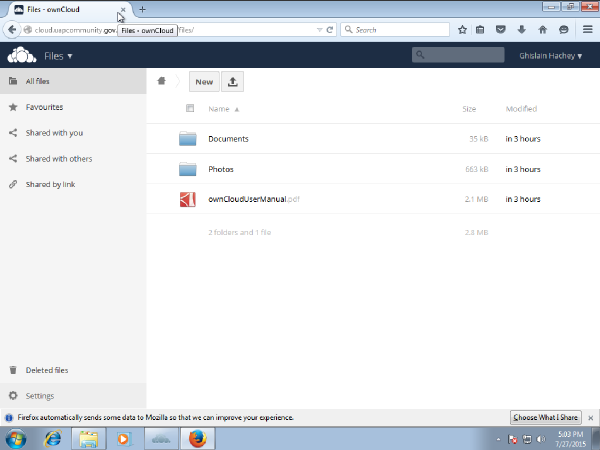
Access the Cloud service at http://cloud.uapcommunity.gov.vu/ and login with your credentials. New users automatically have a small sample of files include the ownCloud User Guide PDF as shown on the following illustration.
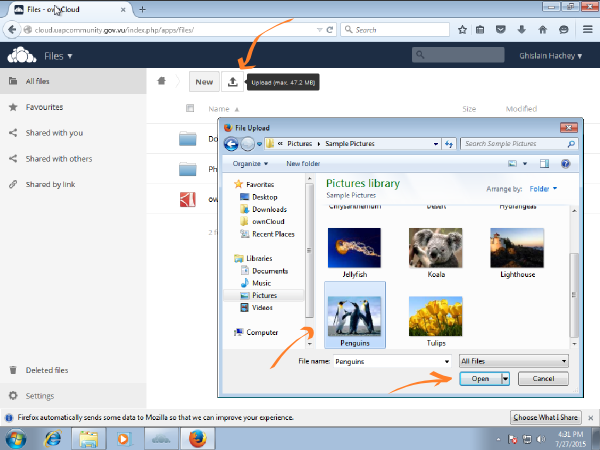
From there you can click around and explore to learn. You can view documents and photos online or you can download them on your device. The following figure illustrates how to upload a file to your account (e.g. an image from the Windows sample images).
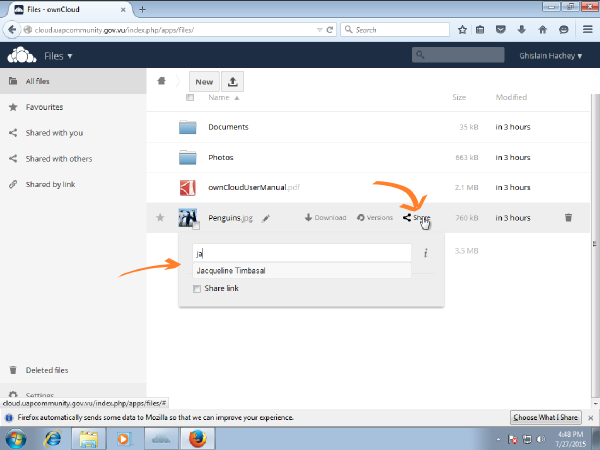
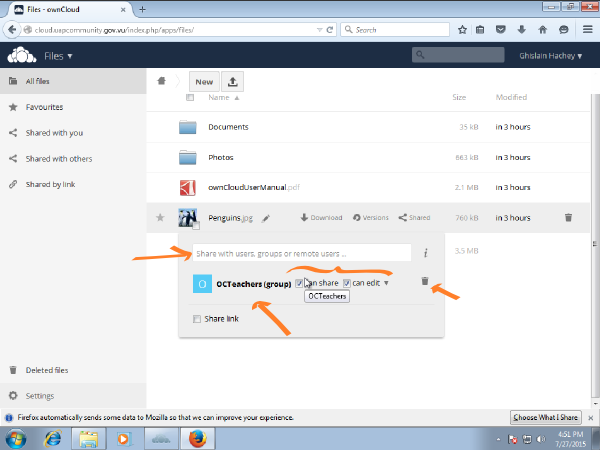
Then you will see your file. If you want to can share the file with others by clicking on Shared next to the file. You can search for users by their full names and ownCloud will try to automatically find them for you.
You can also search for ownCloud groups which all start with OC by typing OC in the box. It should list all groups, try selecting OCTeachers meaning you will share this file with all teachers. Refer to the figure below to see various sharing options available in the browser. You can check mark can share which will allow the users in the groups to in turn also share what you have shared with them (careful if you want to keep something private), you can check mark can edit to enable people in OCTeachers to also edit your file (also careful) and finally you can also remote or unshare the file with the OCTeachers.
Accessing/Syncing/Sharing ownCloud through Android application
There are many applications to connect to ownCloud but a good free one is ocloud for owncloud and can be found in the playstore. You will first have to connect to the owncloud by providing the following information when first starting the application.
- address of the server which is http://cloud.uapcommunity.gov.vu
- user which is your user (You can create several accounts if the tablet is shared by several users though this becomes a little trickier)
- password of the user
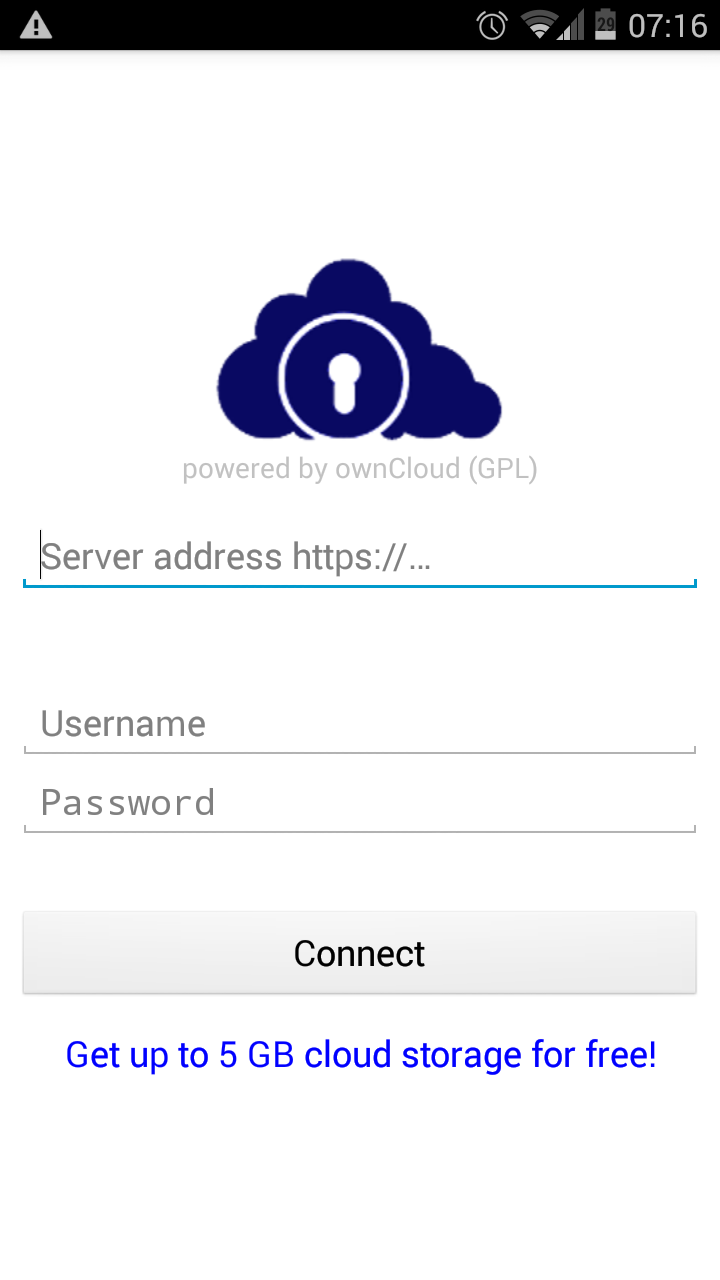
You should then see something like the following when starting the app. You can browse and click to explore and learn. Be careful you don't want to accidentally delete your files.
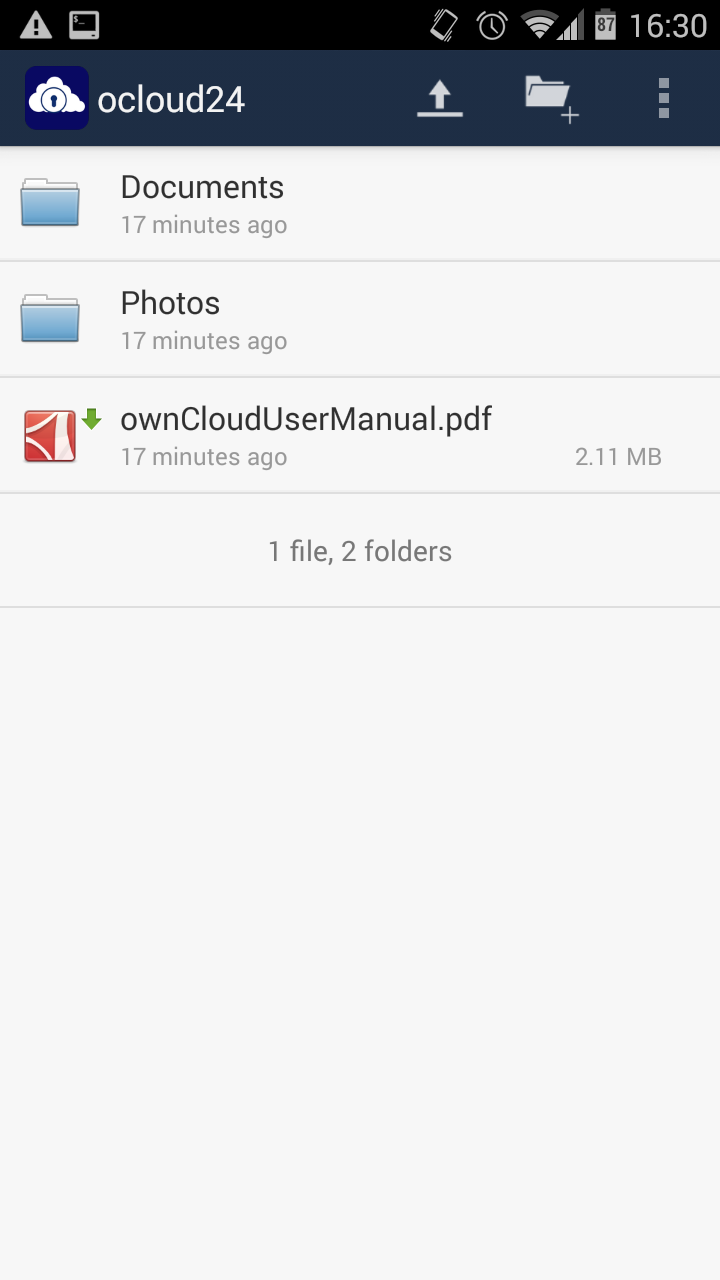
You can upload and download files. You can also share files but not in the same way as can be done from the web browser as seen in previous section. In other words, you can not configure the sharing of files within ownCloud as shown previously with the browser. You can however share files on an ad-hoc basis by sending links to the file by email to users (email could be any application on the tablet that support this such as Instant Messaging). Doing this will be left as an exercise.
Accessing/Syncing/Sharing ownCloud through Windows Desktop Client
Connecting to an ownCloud server on Windows can be done too. It can be done in several ways actually. The recommended way is to use an ownCloud Desktop Client but it could also be done just like mapping a drive to a folder on a server in the traditional way of Windows. Using the ownCloud Desktop Client is the method that is shown here but the ownCloud Desktop Client for Windows must be installed for this to work. It should be installed already on all the Windows PCs but if it is not it is easy to install with Administrator privileges. There is a separate reading reference with instructions for doing this in this topic.
When you first login with your user (or any new user) you can double click on ownCloud from the desktop or the windows start menu.
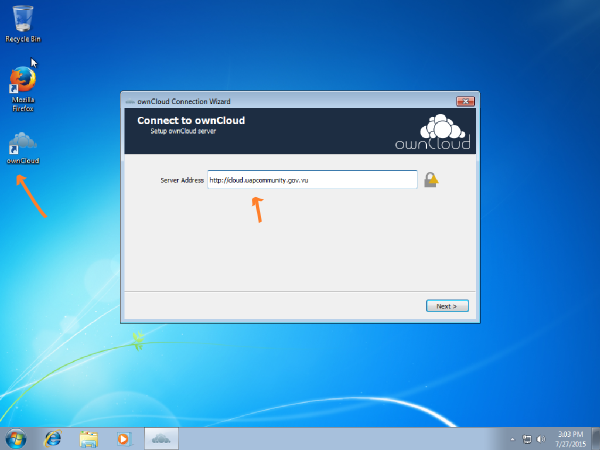
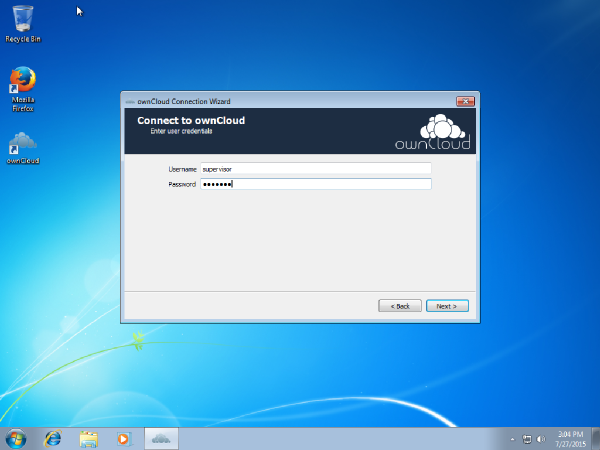
You simply have to enter the server address as shown in the above illustration (i.e. http://cloud.uapcommunity.gov.vu). When connecting to ownCloud you connect as a user. You should always connect as your own otherwise your personal files will get mixed up with those of other users. For example, you should login Windows with your own user and connect to ownCloud as the same user. In this case we logged in Windows with supervisor and now connecting to the ownCloud server as supervisor.
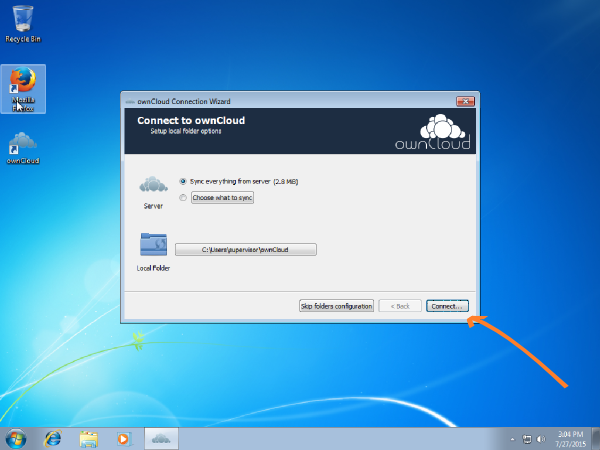
To complete the process you can probably access the default for syncing folders and click Connect as shown with the orange arrow.
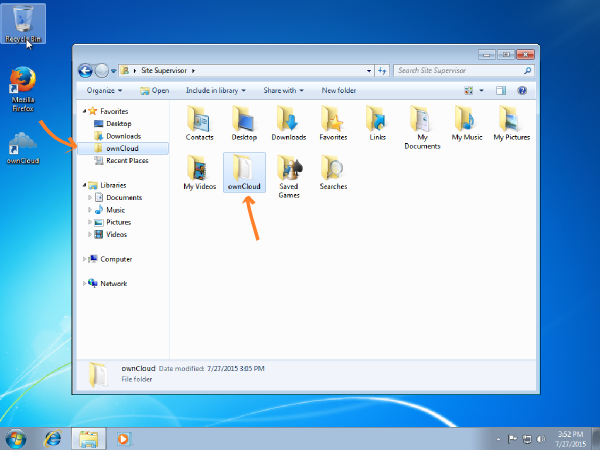
Once you are connected you will have a new folder that shows in the file browser just like all the other except that one will sync with the server enabling flexible sharing. This also means you could access this folder from anywhere from any device. This folder is illustrated below for this example.
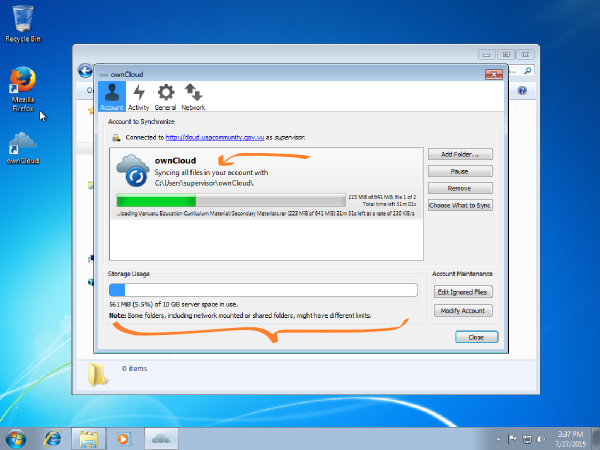
If you look inside that folder you will see everything belonging to the user supervisor or shared with the user supervisor. Also another cool thing you can do is look at the status of the syncing process (some large files may take longer to sync) and also the amount of space left you are allowed for your own files by again opening the ownCloud application from the Desktop or the start menu. You should see something like follows.
You can configure sharing in the same way as can be done with the web browser interface directly from a Windows desktop client. However, you can right click to quickly share a link to any of your file as shown below.
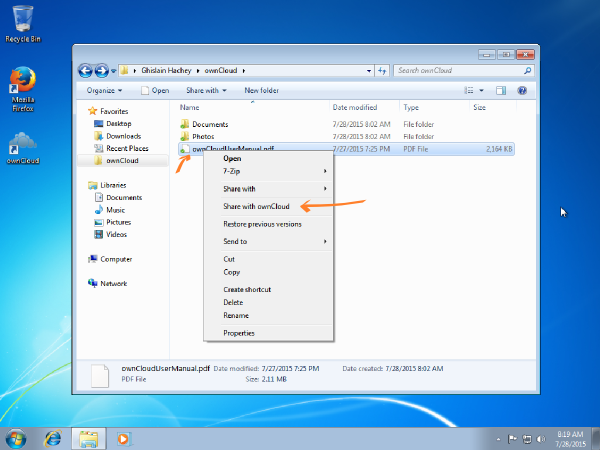
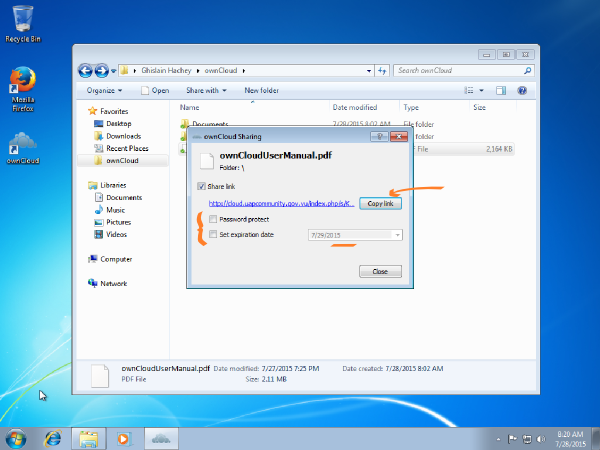
This should open the following window giving you a basic set of sharing options such as password protecting the file to secure it from other users or setting an expiration date to your sharing (this will not remove the file after). Simply Copy link and then paste it in an email to a user, a forum of discussion or anywhere else.